
Command-line Snippet Manager
You can use the QOwnNotes Command-line Snippet Manager to execute command snippets stored in notes in QOwnNotes from the command line.
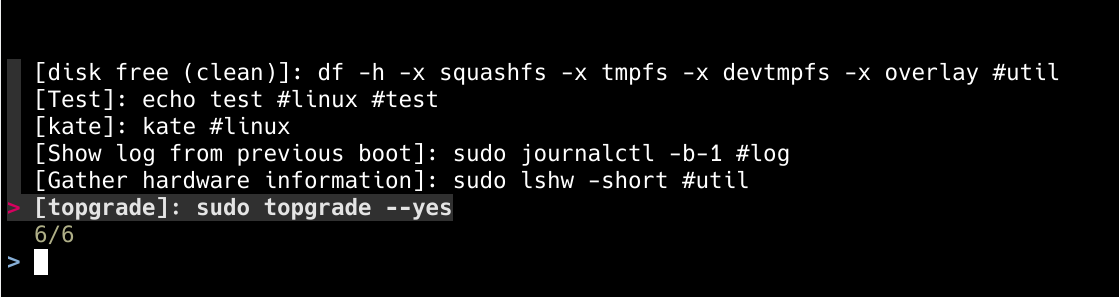
You can use notes with a special tag to store command snippets, which you can execute from the command-line snippet manager.
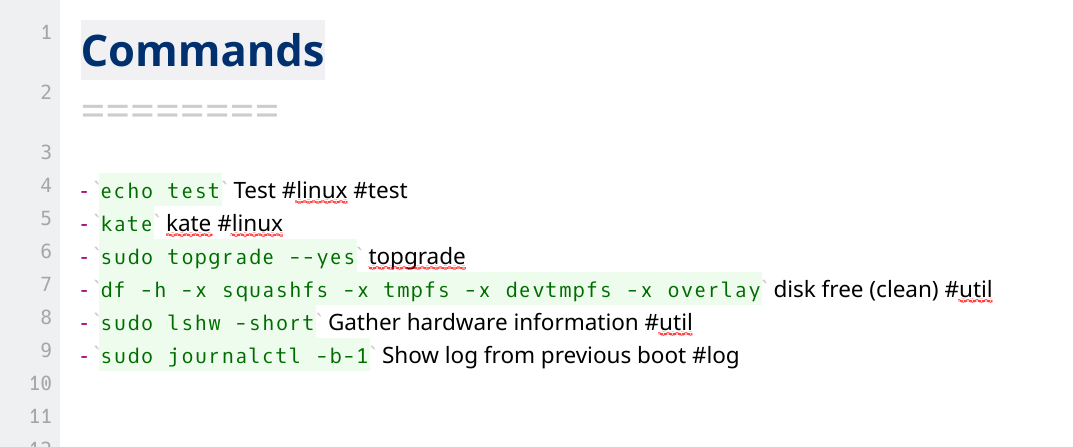
Installation
Visit the latest release page and download the version you need.
Tips
If you have jq installed you can also use this snippet to download and install for example the latest Linux AMD64 AppImage to /usr/local/bin/qc:
curl https://api.github.com/repos/qownnotes/qc/releases/latest | \
jq '.assets[] | select(.browser_download_url | endswith("_linux_amd64.tar.gz")) | .browser_download_url' | \
xargs curl -Lo /tmp/qc.tar.gz && \
tar xfz /tmp/qc.tar.gz -C /tmp && \
rm /tmp/qc.tar.gz && \
sudo mv /tmp/qc /usr/local/bin/qc && \
/usr/local/bin/qc --version
Dependencies
fzf (fuzzy search) or peco (older, but more likely to be installed by default) need to be installed to search for commands on the command-line.
Tips
By default fzf is used for searching, but you can use peco by setting it with qc configure.
Setup
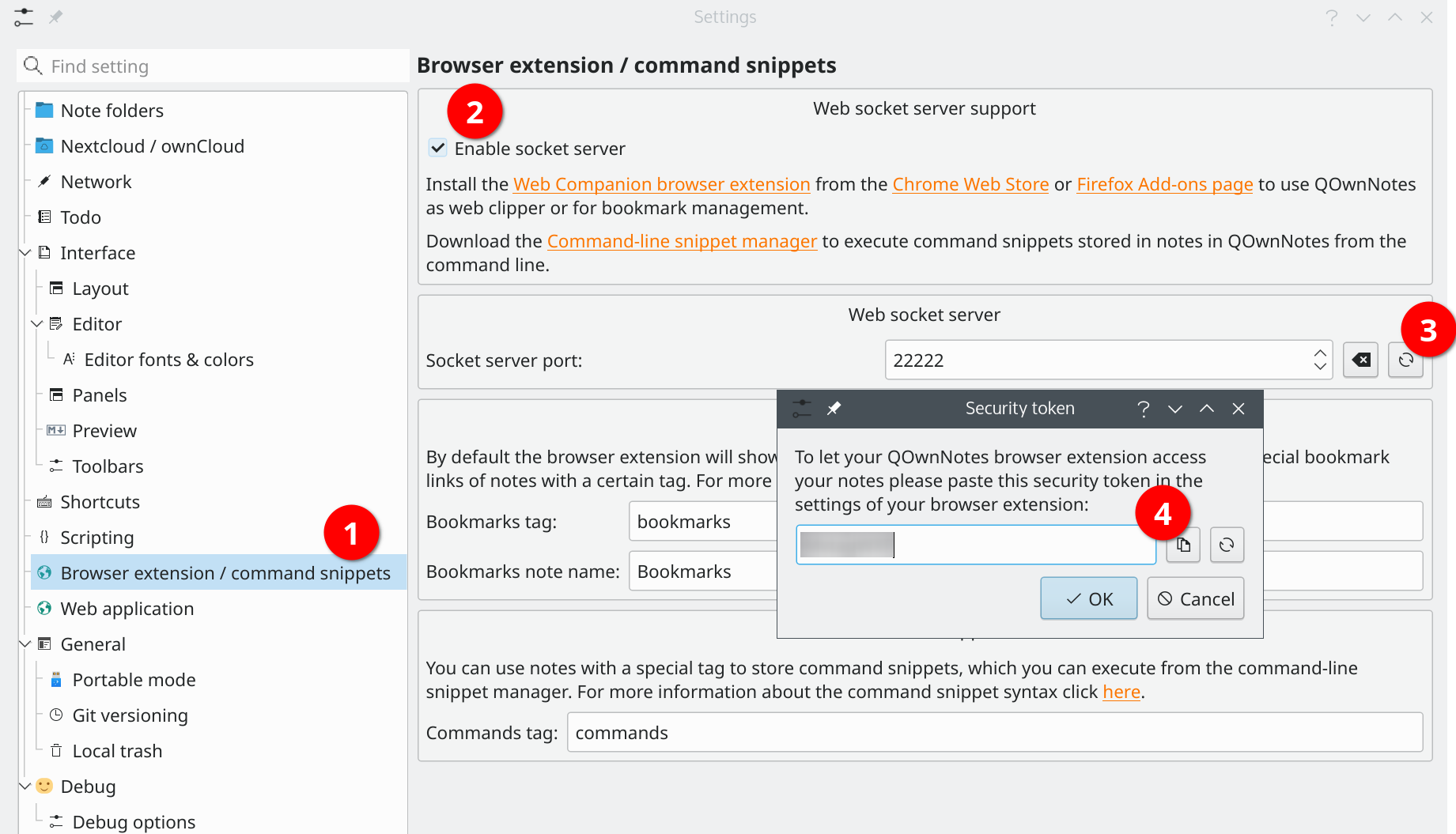
Before you are using the snippet manager you need to enable the Web socket server (2) in the Browser extension / command snippets (1) settings in QOwnNotes.
Then you need to show the security token (3) and copy it (4).
Now open the configuration file of the snippet manager with:
# Configure the snippet manager
qc configure
And put the security token in the token attribute:
[QOwnNotes]
token = "yourtokenhere"
Tips
In the QOwnNotes settings you can also set what note tag should be used to search for commands in notes. By default, the tag commands is used.
Syntax of command snippets
You can use unordered lists with in-line code blocks to store command snippets. All notes with the tag commands are searched for command snippets.
If you add a cmd: before the in-line code block, the command will also be found in the current note regardless of note tags.
- `echo I am a command` I am a description #tag1 #tag2 #tag3

* `echo I am also a command` I am a description #tag3 #tag4 #tag5

- cmd: `echo I will be found in the current note` This command will be found in the current note regardless of note tags

<!-- Example for asking for user input -->

- `read -p "PR ID: " id && git fetch origin pull/$id/head:pull-$id && git checkout pull-$id` Ask for pull request ID and checkout pull request
bash or shell code blocks, preceded by a heading 2 or higher as a description, can also be used for command snippets. Tags are also supported if they are between the heading and the code block.
## Do this with a "bash" code block

- this text will be ignored text
- but tags can be used: #tag1 #tag2

```bash
echo do this
echo do that
```

## Do something else with a "sh" code block

```sh
echo do something else
echo do something other
```
Above example will result in two command snippets, the first one with the two tags tag1 and tag2.
Usage
# Search and execute command snippets
qc exec
# Search and print command snippets
qc search
Configuration
Run qc configure.
[General]
  editor = "vim"            # your favorite text editor
  column = 40               # column size for list command
  selectcmd = "fzf"         # selector command for edit command (fzf or peco)
  sortby = ""               # specify how snippets get sorted (recency (default), -recency, description, -description, command, -command, output, -output)

[QOwnNotes]
  token = "MvTagHXF"        # your QOwnNotes API token
  websocket_port = 22222    # websocket port in QOwnNotes
Shell completion
You can generate shell completion code for your shell with qc completion <shell>.
For example for the Fish shell you can use:
qc completion fish > ~/.config/fish/completions/qc.fish